The Digital Declutter Checklist: Phone, Photos, Email, Files
You can have a spotless kitchen and still feel overwhelmed, because the clutter that stresses you out most is the kind you cannot see: the 14,000 photos on your phone, the inbox with 3,000 unread messages, the desktop so full of files you cannot find your wallpaper. Digital clutter does not take up floor space, but it takes up attention, and it has a way of making you feel behind no matter how tidy the house looks.
The fix is the same one that works on physical clutter: handle it in zones, one at a time, with a clear stopping point. This checklist treats your digital life like a house with four rooms. You will clean the phone, the photos, the email, and the computer files, in that order, and each section ends with a simple rule that keeps it tidy afterward. No new apps to buy, no systems to worship, just a calm hour or two of deleting and sorting.
Here's what you'll learn in this guide to digital decluttering: how to trim your phone apps, notifications, and home screen; how to sort through photo duplicates and screenshots and set up reliable cloud backup; how to run an unsubscribe sweep and triage your email folders; and how to clear your desktop, downloads, and documents folders. You will finish with a maintenance routine that keeps everything quiet going forward.
The Phone: Apps, Notifications, and Home Screen
Your phone is the first room because you see it a hundred times a day. Start by deleting apps you do not use. Open your app list, scroll slowly, and remove anything you have not opened in three months. Do not keep apps "just in case." If you ever need one again, it takes two minutes to reinstall. A good target is one screen of essentials plus one folder of occasional-use apps.
Next, fix notifications, which are the real source of phone stress. Go through your notification settings and turn off banners and sounds for everything except actual people: calls, texts, and the apps you chose deliberately (your calendar, your bank's fraud alerts, your ride app). Marketing pings, news alerts, and social media likes should never interrupt you. Most people find this single change more relaxing than deleting fifty apps.
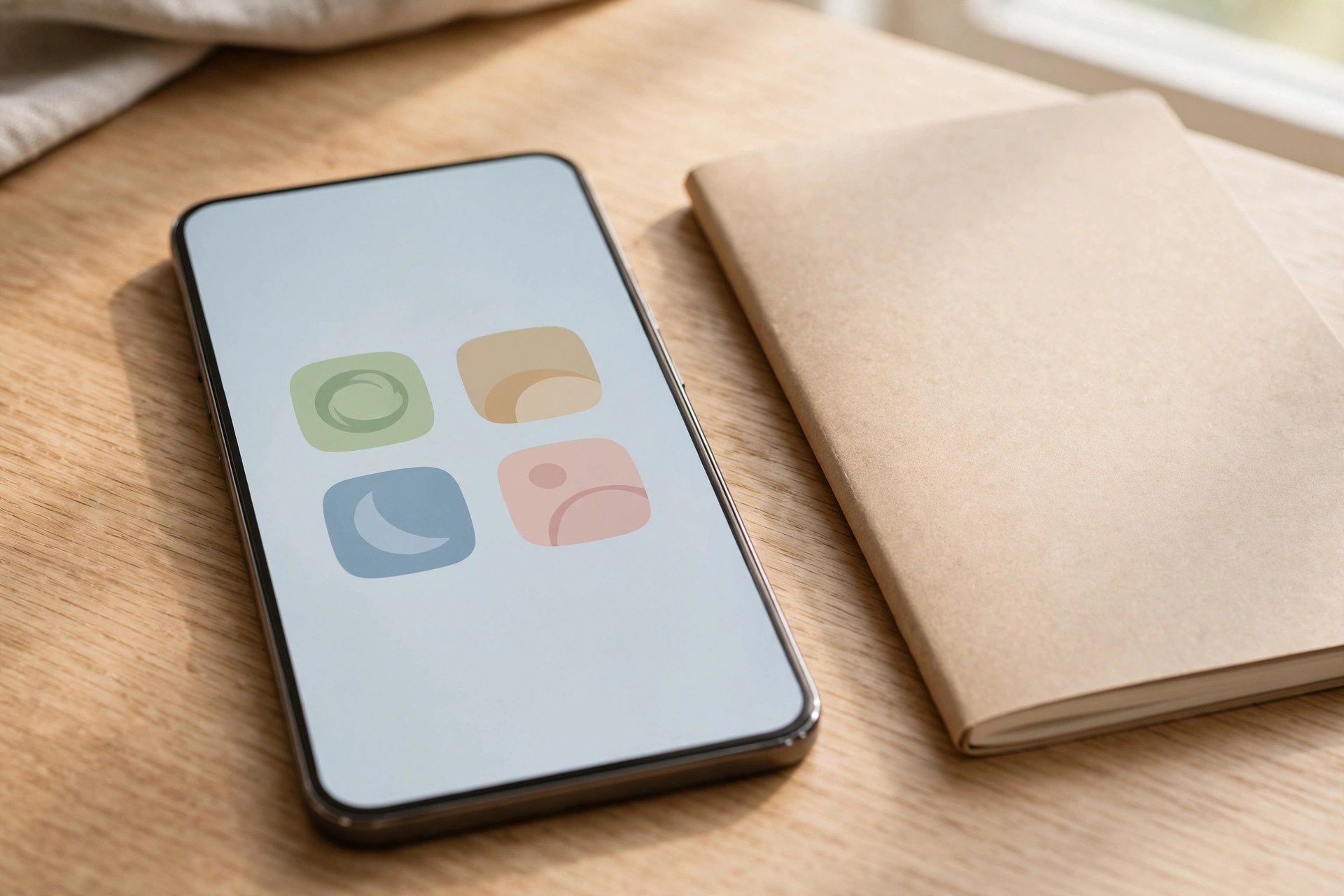
Then rebuild the home screen around how you actually use the phone. Put your camera, messages, maps, and one or two tools on the first screen. Put everything else into folders by purpose (money, travel, health) on the second screen. A calm home screen means you open the phone for a reason and close it when you are done, instead of drifting.
The Photos: Duplicates, Screenshots, and Backups
Photos are the second room because they carry the most emotion and the most junk. The average phone holds thousands of near-duplicate shots, accidental screenshots, and photos of parking spots from two years ago. Work in three passes. First, delete the obvious junk: screenshots, receipts, memes, blurry shots, and photos of things you no longer need (old grocery lists, expired tickets, that picture of a parking sign). This pass alone often removes 30 percent of the library.
Second, handle the duplicates. Open bursts and pick the best one or two shots from each set, then delete the rest. Most phones have a duplicates album or a search for duplicates under the albums tab, which speeds this up enormously. Do not agonize over which photo is perfect; keep the ones that make you feel something and let the near-identical backups go.
Third, set up backup so this never becomes scary again. Turn on your phone's built-in cloud backup and confirm it actually completes: open the cloud storage page and check the date of the last backup. Then pick one second copy for the photos you care about most, like an external drive you update twice a year. Digital decluttering works best when deleting feels safe, and a verified backup is what makes it feel safe.
The Email: Unsubscribe Sweeps and Folder Triage
Email is the third room, and it responds well to aggressive pruning. Start with an unsubscribe sweep. Search your inbox for the word "unsubscribe" to surface every marketing list, then unsubscribe from everything you do not genuinely enjoy reading. Be ruthless. If you have not opened a newsletter in the last month, you will not miss it. Many email apps also offer one-tap unsubscribe suggestions at the top of the inbox, which can clear dozens of senders in minutes.
Then triage what is left. Create three folders: Action, Waiting, and Reference. Action holds things you must do. Waiting holds things someone else owes you. Reference holds confirmations, receipts, and tickets you might need later. Everything else gets archived or deleted. After the sweep, your inbox should only hold mail from the last week. Make it a rule: every email is deleted, archived, or filed by the end of the week it arrived.
One more tip for chronic overflow: filter aggressively. Set up a rule that sends every newsletter to a "Reading" folder automatically, bypassing the inbox. Your inbox then holds only messages from actual people and accounts, which is what it was designed for. If paper mail is piling up in parallel, our paper clutter and mail organization system uses the same triage thinking for physical mail.
The Computer Files: Desktop, Downloads, and Documents
The fourth room is your computer. Start with the desktop, which for most people is a dumping ground. Move every file into one of four folders: Projects (current work), Reference (things you need), Archive (finished work), or a Temporary folder dated this month that you will empty next month. If you cannot decide where something goes, it goes in Archive. A clean desktop is a surprisingly calming sight.
Next, empty the downloads folder completely. Downloads are almost always duplicates of things that live somewhere better (the attachment is still in your email, the installer is on the website). Move the two or three files you actually need to their proper places, then delete the rest. After that, sort the documents folder with the same four-folder system you used for the desktop. Name files clearly as you go: "tax-return-2025.pdf" beats "Document (7) final FINAL.pdf" every time.
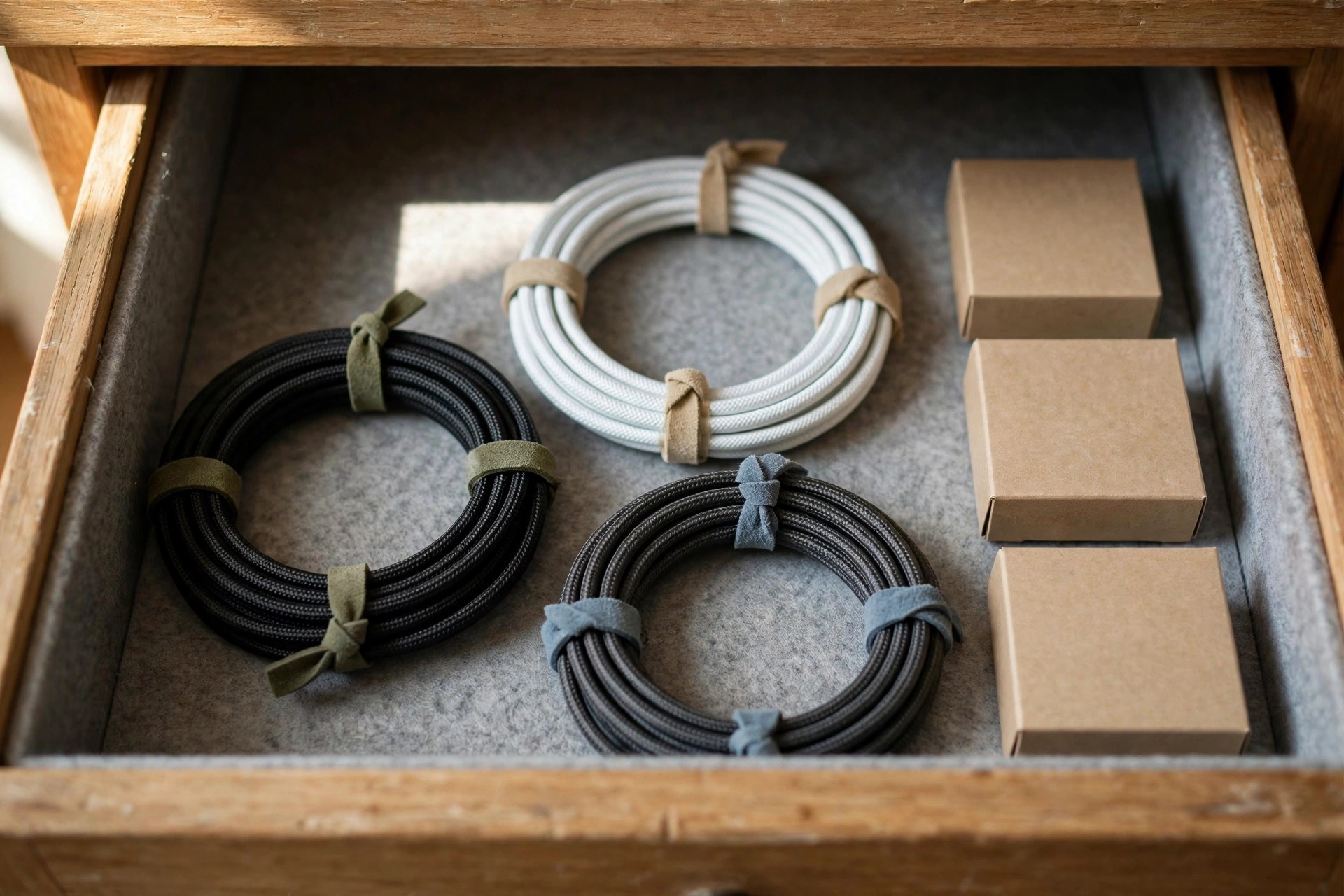
Finally, close the loop on physical tech clutter while you are at it. The drawer full of mystery cables is the physical version of the downloads folder. Coil each cable, tie it, keep one of each type you use, and donate or recycle the rest. One tidy drawer and one clean desktop do more for your sense of control than most productivity systems.
The Maintenance Routine: Keeping It Quiet
Decluttering once feels great, but the point is to stop doing it. A ten-minute weekly routine does it: every Sunday, delete this week's screenshots and junk photos, archive or file the week's emails, and empty the downloads folder. That is the whole routine. Ten minutes keeps all four rooms quiet.
Once a month, do a slightly bigger pass: review new apps, check that your backup completed, and clear out the Temporary folder. Put it on the calendar as a recurring event so you do not have to remember. If you keep a household reference binder for important documents, our guide to the new homeowner maintenance binder pairs well with a clean digital system: physical records for the house, digital records for everything else.
The last rule is the one that matters most. Before you download, screenshot, or save anything new, ask yourself where it will live and whether you will ever open it again. Most digital clutter arrives because something was saved "just in case" and then never found. Saving less is easier than sorting more. And if your physical rooms could use the same treatment, the whole-house speed cleaning system applies the same zone-by-zone thinking to the rooms you can actually see.